Why Your Smart Thermostat Wi-Fi Keeps Disconnecting
When "smart thermostat Wi-Fi disconnecting" becomes a daily problem, the thermostat may stop updating schedules, lose remote control, or show an offline message in the app. In Southwest Florida, router restarts, power flickers, crowded Wi-Fi signals, and HVAC shutdowns can all cause the same frustrating symptom.
The thermostat itself may not be the problem. A useful diagnosis starts by separating a thermostat connection failure from a home network outage, an app issue, or an HVAC power problem. Start with these key points, then follow the troubleshooting steps below.
Key Takeaways
- Check whether the thermostat, your Wi-Fi network, or the mobile app is offline.
- Restart the router and thermostat before removing the device from your account.
- A weak 2.4 GHz signal, mesh network change, or new router security setting can interrupt the connection.
- A blank screen, tripped breaker, or repeated HVAC shutdown points to a power or equipment issue.
- Never change thermostat wiring or work inside the electrical panel unless a qualified professional handles it.
Why Smart Thermostat Wi-Fi Disconnecting Problems Happen
A smart thermostat needs three separate things to work remotely: power from the HVAC system, a connection to your home Wi-Fi, and communication with the manufacturer's cloud service. A failure in any one of these areas can make the thermostat appear offline.
For example, the thermostat may still control your air conditioner from the wall while the app cannot reach it. That usually points to Wi-Fi or an account connection. However, if the thermostat screen is blank, the problem may involve the HVAC system's low-voltage power.
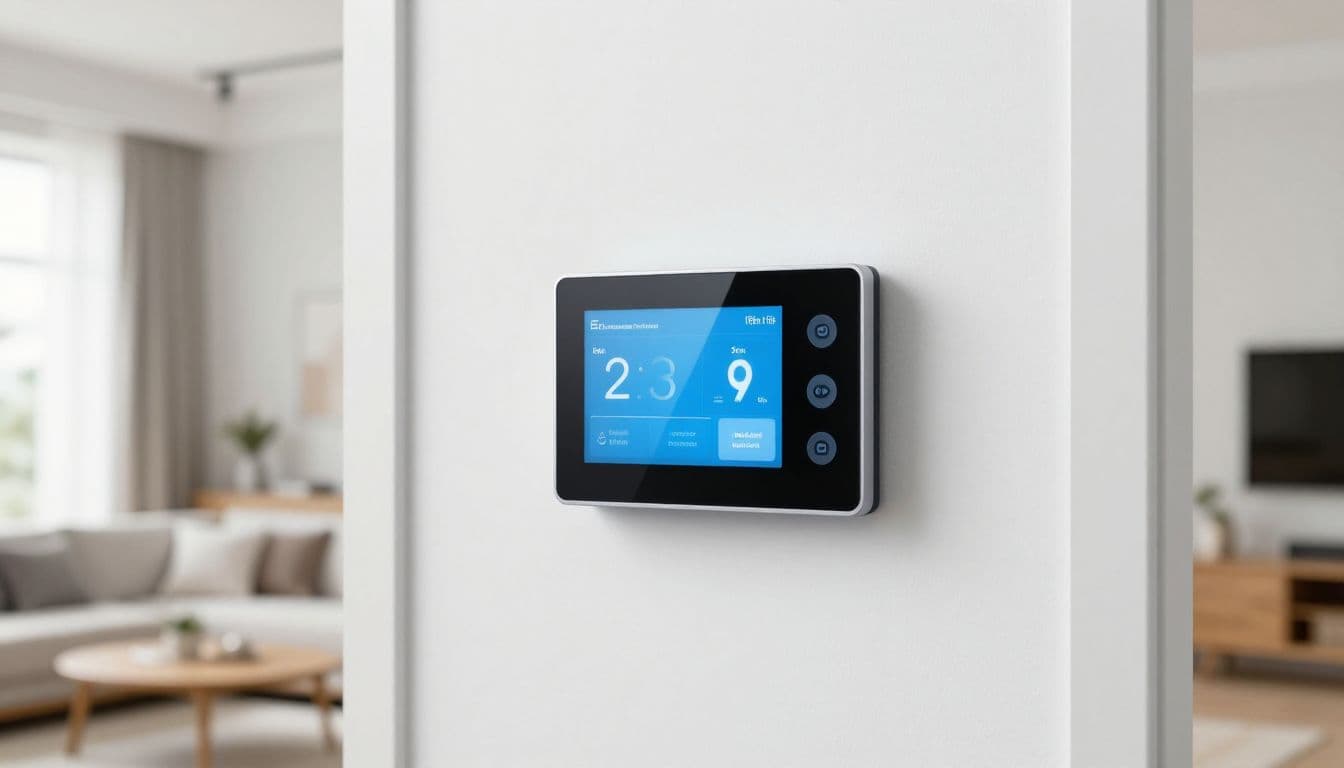
Common causes include:
- Router interruptions: A modem or router may lose its internet connection after a power flicker or service outage.
- Weak wireless signal: Concrete walls, metal ductwork, appliances, and long distances can reduce signal strength.
- Band or security changes: Some thermostat models work best on 2.4 GHz Wi-Fi. A new router may also use security settings the thermostat doesn't support.
- Mesh network changes: Replacing a node, changing the network name, or moving a mesh unit can affect the thermostat's connection.
- HVAC power loss: A tripped breaker, condensate safety switch, blown low-voltage fuse, or control-board issue can shut off the thermostat.
- App or account errors: A logged-out app, outdated software, incorrect home location, or service outage can make remote control unavailable.
Florida weather adds another factor. Summer storms and brief utility interruptions can restart networking equipment or cause HVAC safety controls to pause the system. Your thermostat might reconnect on its own, but repeated outages often point to a condition that needs attention.
How to Tell Which Connection Failed
Before changing settings, look at the thermostat's display and compare it with the mobile app. The exact wording differs between Nest, ecobee, Honeywell Home, Sensi, and other brands, but the basic clues are similar.
If the thermostat screen is working and lets you adjust the temperature, check whether it shows a Wi-Fi symbol, network name, or offline notice. A local temperature change confirms that the thermostat has power. It doesn't confirm that the wireless connection is healthy.
Next, use a phone or laptop connected to the same home network. Open a few websites or streaming services. If those devices also fail, restart the modem and router first. Wait several minutes after the equipment comes back online, then check the thermostat again.
| What you see | Most likely area to check |
|---|---|
| Thermostat is blank | HVAC power, breaker, fuse, or wiring |
| Thermostat works locally but app says offline | Wi-Fi, internet, app, or account |
| Other devices also lose internet | Router, modem, or internet provider |
| App cannot log in | Account, password, permissions, or service status |
| Connection drops when cooling starts | HVAC power, wiring, or equipment control |
The thermostat's built-in settings can also reveal useful information. Look for Wi-Fi signal strength, connection status, software version, and the last time it connected. Avoid repeatedly deleting and re-adding the thermostat at this stage. That step can erase useful network information and may not fix a power or signal problem.
If the thermostat controls the temperature at the wall but the app is offline, the HVAC system may be operating normally.
Troubleshooting Steps for a Smart Thermostat Wi-Fi Disconnecting
Start with the least disruptive fixes. These steps apply across most major thermostat brands, although menu names and restart procedures vary by model.
1. Confirm the internet connection
Check another device on the same Wi-Fi network. If your phone works only on cellular data, the thermostat probably isn't the cause. Check your internet provider's outage information if the router shows an error or remains offline.
If other devices connect normally, continue with the thermostat and its network settings.
2. Restart the network equipment
Unplug the modem and router, if they are separate devices. Wait about 60 seconds, reconnect the modem first, and give it time to establish service. Then reconnect the router.
Don't reset the router to factory settings unless you know the network name, password, and configuration details. A factory reset can disconnect cameras, doorbells, televisions, and other smart devices throughout the home.
3. Restart the thermostat
Use the restart option in the thermostat's settings when available. If the model has removable batteries, follow the manufacturer's instructions before removing them. Avoid pulling the thermostat off its wall plate unless the instructions call for it.
After the restart, allow several minutes for the thermostat to reconnect. If it remains offline, open the Wi-Fi settings and confirm that the network name is correct.
4. Re-enter the Wi-Fi password carefully
A changed password is a common cause of a persistent offline message. Pay attention to capital letters, numbers, and special characters. If you recently replaced the router, the thermostat may still be trying to find the old network.
Some routers combine 2.4 GHz and 5 GHz networks under one name. Many newer thermostats can handle this arrangement, but some models have stricter network requirements. Check the thermostat's installation guide before separating the bands or changing security settings.
5. Improve the signal near the thermostat
A thermostat in a hallway may be farther from the router than expected. Air handlers, metal objects, tile, and thick walls can weaken the signal. Move the router or add a properly placed mesh node if the signal is poor.
Place a mesh unit in an area where it still receives a strong signal from the main router. Installing it in the dead zone beside the thermostat won't solve the underlying coverage problem.
6. Update the app and check the account
Update the thermostat's mobile app and your phone's operating system. Then sign out and sign back in. Confirm that you're using the account linked to the thermostat and that the correct home or property is selected.
If the thermostat works from its wall controls but the app shows stale information, an account or cloud service problem is more likely than an HVAC failure. Check the manufacturer's service status page if the app cannot load device information.
7. Remove and reconnect the network only when needed
If the router works, the signal is strong, and the thermostat still won't connect, remove the saved Wi-Fi network through the thermostat's settings. Reconnect it with the correct network name and password.
Use factory reset as a last resort. Before resetting, record the current schedule and equipment settings. A reset can remove temperature programs and configuration details that may need to be restored.
Check HVAC Power Before Touching Wiring
A smart thermostat can lose its Wi-Fi connection when the HVAC system loses power to the thermostat circuit. This issue often appears during heavy cooling demand, especially when an air conditioner runs for long periods.
Check whether the screen is blank or repeatedly restarting. If so, inspect the home's HVAC breaker from a safe position. A breaker that has tripped once may reset, but a breaker that trips again indicates an electrical or equipment problem. Leave it off and call a qualified HVAC technician rather than resetting it repeatedly.
Your system may also have a condensate drain safety switch. When an air conditioner drain pan fills or the drain line clogs, the switch can shut down the equipment to help prevent water damage. The thermostat may then lose power or stop communicating.
Do not remove thermostat wires, bypass a safety switch, open the air handler, or work inside the breaker panel. Low-voltage wiring can still damage equipment when connected incorrectly, and electrical panels can cause serious injury.
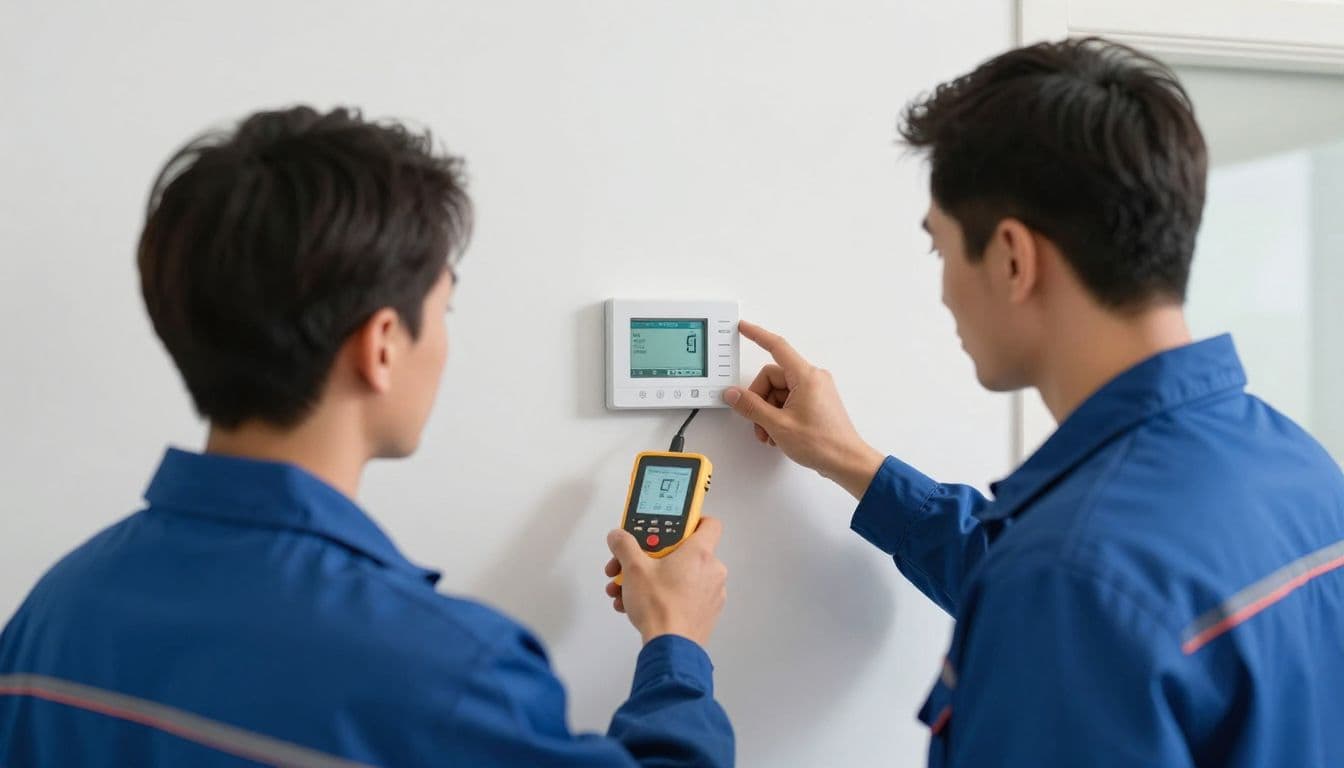
Call for professional service when:
- The thermostat stays blank after a safe breaker check.
- The breaker trips again after reset.
- The air conditioner doesn't start or stops shortly after starting.
- The thermostat restarts whenever the cooling system turns on.
- You see loose, damaged, or improperly connected wiring.
- Water appears near the air handler or indoor unit.
- Wi-Fi troubleshooting works temporarily, but the thermostat repeatedly loses power.
In Fort Myers, Cape Coral, and nearby Lee County communities, a technician can test the thermostat voltage, inspect the control board, check the condensate safety system, and confirm whether the HVAC equipment is causing the disconnection. If you need replacement options or an equipment evaluation, you can Schedule an Estimate with Valor Heating & Cooling.
How to Prevent Future Wi-Fi Dropouts
Once the thermostat reconnects, look for the condition that caused the failure. Keep the router firmware and thermostat app updated. Write down the Wi-Fi password in a secure location so a future router replacement doesn't create confusion.
Place the router or mesh equipment where it can reach the thermostat without passing through multiple walls. Avoid placing the router inside a cabinet, behind large appliances, or next to other devices that generate interference.
A small uninterruptible power supply can keep networking equipment online during short power flickers. It won't keep the air conditioner running, but it may prevent the modem and router from rebooting during a brief interruption.
Also, schedule routine HVAC maintenance. A clogged drain, dirty filter, failing capacitor, or control issue can cause repeated system shutdowns that look like thermostat connection failures. Regular service helps separate a wireless problem from an HVAC problem before hot weather exposes the weakness.
Conclusion
A smart thermostat that keeps disconnecting may have a weak Wi-Fi signal, an unstable router, an app problem, or a loss of HVAC power. Check the thermostat display, test other devices, restart the network, and review the connection settings before resetting anything.
If the screen is blank, the breaker trips, water is present, or the system shuts down when cooling starts, stop changing Wi-Fi settings. The strongest fix for recurring smart thermostat Wi-Fi disconnecting problems is an accurate diagnosis of the network and HVAC system together.
Recent Posts